
The most common objection we hear to adopting a UTM tool isn’t about features or price. It’s this: “We have two years of links in a spreadsheet. We can’t just start over.”
Fair. That spreadsheet — chaotic as it is — holds your campaign history, your live links, the tags running in ads right now. Abandoning it means losing institutional memory; retyping it means a week of copy-paste nobody will do. So teams keep the spreadsheet, the spreadsheet keeps breeding Facebok variants, and the cleanup never happens.
Import Sheets exists to remove that objection. It takes your existing spreadsheet — or a bulk batch of brand-new links — as a CSV, runs everything through your account’s rules, and lands it in your workspace as governed, searchable link history. Migration becomes an upload, not a project.
Here’s how it works, and the three workflows it unlocks.
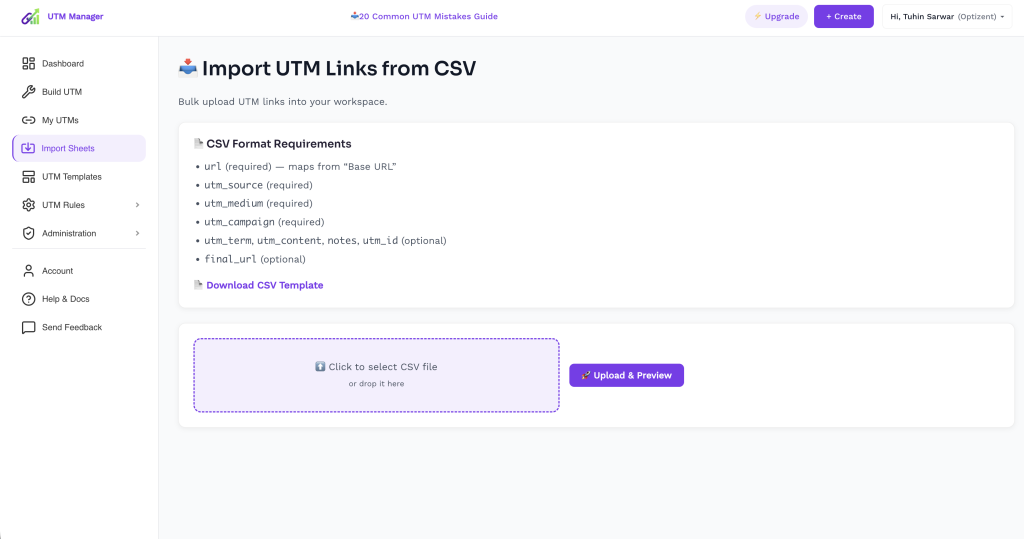
The Format: Seven Columns, Three Required
Head to Import Sheets in the sidebar. The CSV format is deliberately minimal:
| Column | Required? | What it is |
|---|---|---|
url | ✅ | The base destination URL (your landing page, before any parameters) |
utm_source | ✅ | Who sends the click — google, facebook, klaviyo |
utm_medium | ✅ | The channel — cpc, email, paid-social |
utm_campaign | ✅ | The campaign name |
utm_term, utm_content | Optional | Keyword/audience and creative variant |
utm_id | Optional | Permanent campaign ID (the key for GA4 cost data import) |
notes | Optional | Free-text context for your team |
final_url | Optional | The complete tagged URL, if you already have it |
Notice what the required list enforces: you literally cannot import a link without source, medium, and campaign. That’s not an arbitrary restriction — those three are the minimum GA4 needs to attribute a session properly. The format itself refuses to accept the half-tagged links that cause “Unassigned” traffic.
Two columns deserve special mention:
notes is the institutional memory field. In spreadsheet land, context lives in cell comments, tab names, and the head of one person who left last quarter. “This was the influencer batch for the March launch,” “partner insisted on this campaign name,” “deprecated — do not reuse” — put it in notes and it travels with the link forever, visible to whoever finds it in the library later.
utm_id is worth back-filling during migration. If you’ve read our complete parameter guide, you know utm_id is the join key for GA4’s cost data import — the thing that unlocks Meta and TikTok ROAS inside GA4. Migration is the perfect moment to assign IDs to your active paid campaigns, because you’re touching every row anyway.
Not sure about the format? There’s a Download CSV Template link right on the page — start from that instead of guessing at column names.
Workflow 1: The Spreadsheet Migration
The big one. Here’s the process we recommend, based on watching teams actually do it:
Step 1 — Export and triage. Export your existing UTM spreadsheet. Delete dead campaigns ruthlessly; migrate live and recent links, not archaeology. A two-year-old holiday campaign’s links don’t need governance — they need to rest in peace in an archive tab.
Step 2 — Normalize before you import (or let the rules do it). Your spreadsheet almost certainly contains case drift and separator chaos. You have two options: clean it in the sheet first, or lean on your Global Rules — lowercase enforcement and separator replacement apply on the way in, so Spring Sale arrives as spring_sale automatically. Either way, the mess stops at the border.
Step 3 — Map your columns to the template. Rename your sheet’s headers to match (url, utm_source, utm_medium…), drop extra columns into notes rather than deleting them, save as CSV.
Step 4 — Upload & Preview. This is the important part: import isn’t a blind dump. The preview step shows you what’s about to enter your workspace before it commits. Read it. This preview is frequently the first time a team sees their full tagging history in one normalized view — and the duplicates, near-misses, and “wait, who created that” moments are exactly the audit you never had time to run manually.
Step 5 — Import, then deprecate the spreadsheet. Not “keep it as backup.” Deprecate it — lock it, rename it ARCHIVED — use UTM Manager, remove edit access. A migration where the old system stays writable isn’t a migration; it’s a second source of truth waiting to drift.
Total time for a typical account: an afternoon. Compare that to the alternative timeline of “never.”
Workflow 2: The Bulk Launch
Here’s a governance truth most tools ignore: if creating fifty compliant links is painful, people will create fifty non-compliant links instead. Every bypass of your system happens under deadline pressure, and deadlines are when bulk needs spike — BFCM launches, product drops, a campaign going live across eight landing pages, three sources, and two mediums simultaneously.
The CSV route turns that into a spreadsheet exercise your team already knows how to do: build the grid in Sheets or Excel (where formulas and drag-fill make 50 rows take 5 minutes), export, upload, preview, done. All fifty links inherit your Global Rules on the way in and land in the shared library where the whole team can grab them.
A pattern that works well: keep a “launch template” sheet with your standard columns pre-built and formulas that assemble utm_campaign from parts (objective, promo, yyyymm cells). New launch = duplicate the sheet, fill the parts, export, import. Repeatable, fast, and every launch lands governed.
Workflow 3: The Agency & Partner Handoff
If you’re an agency, your clients hand you spreadsheets. If you’re a brand, your agencies hand you spreadsheets. Either direction, Import Sheets is the bridge: whatever tagging exists on the other side of the relationship comes in as CSV, passes through your rules, and joins your library — normalized, noted, and attributable.
The notes column earns its keep here especially: tag imported batches with their origin (imported from agency Q3 sheet, client-provided — verify mediums) so provenance never gets lost. Six months later, when a weird campaign name surfaces in GA4, the answer is one search away instead of one awkward email thread away.
Why Preview-Before-Commit Matters More Than It Looks
It would’ve been easier to build a one-click import that just… imports. The Upload & Preview step exists because bulk operations are exactly where mistakes scale: one wrong column mapping doesn’t create one bad link, it creates five hundred. The preview is your blast door — you see the parsed result, catch the utm_source/utm_medium columns you accidentally swapped, and fix the CSV before anything touches your workspace.
Treat it as a habit, not a formality: upload, actually read ten rows, then commit. Ten seconds of reading beats an hour of bulk-deleting.
The Bigger Point
Every governance system faces the same cold-start problem: your data history lives somewhere ungoverned, and the switching cost of moving it protects the mess. Import Sheets is the answer to that problem — the on-ramp that makes “we’ll clean this up someday” into “we cleaned it up on Tuesday.”
Spreadsheets got your tracking this far. Import the good parts, archive the rest, and let the rules take it from here.
Bring your links home. Start free with UTM Manager — download the CSV template, import your existing spreadsheet in one afternoon, and every link after that gets created governed from the start.
Still Building UTM Links in Spreadsheets?
Create clean campaign URLs faster, save templates, and standardize naming across your team.