
Every messy GA4 report we’ve ever audited traces back to the same root cause: somewhere, a human typed a UTM value by hand.
Not a careless human, either. A perfectly competent marketer, on a Friday, launching six campaigns at once, who typed Facebook instead of facebook, or spring sale with a space, or pasted a value with a stray & in it. Each one is a tiny act; each one becomes a permanent, un-mergeable row in your analytics.
You can fight this with documentation — a naming convention doc everyone is supposed to read. Or you can fight it with a rule that runs automatically on every single value, every single time, without anyone remembering anything. That second option is what Global Rules in UTM Manager is: a normalization layer that sits between what your team types and what your links contain.
This post walks through each rule, why it exists, and the configuration we recommend.
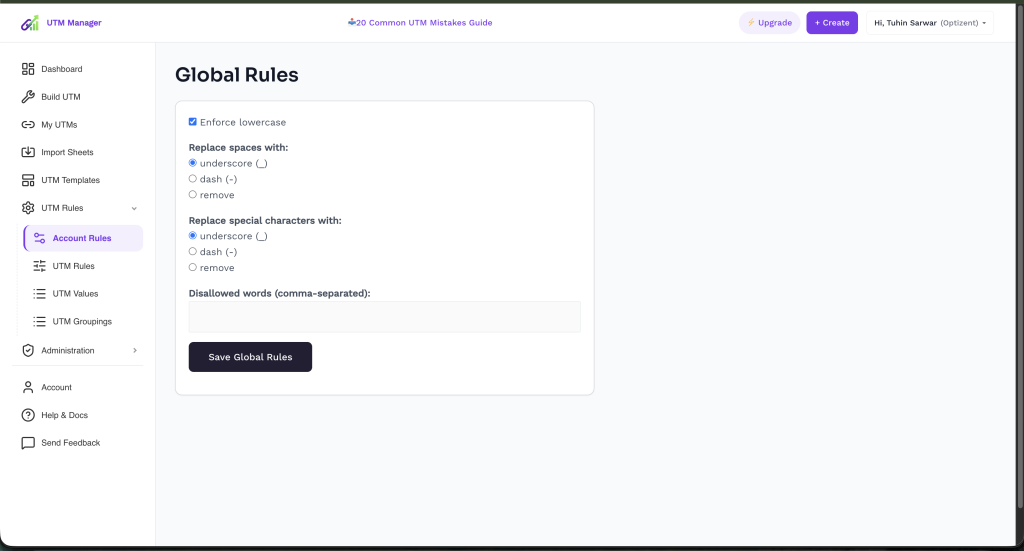
Where Global Rules Live
In UTM Manager, go to UTM Rules → Account Rules. What you’ll find is deliberately short — four controls, one save button:
- Enforce lowercase
- Replace spaces with (underscore / dash / remove)
- Replace special characters with (underscore / dash / remove)
- Disallowed words
Four controls doesn’t sound like much until you realize these four cover the vast majority of real-world UTM corruption. Let’s take them one at a time.
Rule 1: Enforce Lowercase
What it does: every value anyone enters — in the builder, in templates, through sheet imports — is converted to lowercase before a link is generated.
Why it exists: UTM parameters are case-sensitive strings all the way down the pipeline. GA4 treats Email, email, and EMAIL as three unrelated values, which means three separate rows in every report, forever, that no amount of dashboard filtering will merge back together. Case drift is the single most common form of UTM fragmentation we see — and the most pointless, because nobody intends it. It’s a shift-key accident with permanent consequences.
Recommendation: turn it on and never think about it again. There is no legitimate use case for mixed-case UTM values. This checkbox is the single highest-value click in the entire settings area.
Rule 2: Replace Spaces With…
What it does: any space in a value is automatically converted to your chosen separator — underscore (_), dash (-), or removed entirely.
Why it exists: URLs can’t contain literal spaces, so browsers and platforms encode them as %20 or +. That means spring sale becomes spring%20sale in your reports — ugly, inconsistent (different systems encode differently), and hostile to any parsing or filtering you try later. Worse, some redirect chains and older parsers genuinely choke on encoded spaces.
Recommendation: pick underscore or dash — either is fine — but understand what you’re really choosing: a separator standard for your whole account. The trap isn’t picking the “wrong” one; it’s mixing them. spring_sale and spring-sale are, once again, two different values to GA4. Global Rules makes the choice once, at the account level, and applies it to everyone — which is exactly where a decision like this belongs. (Avoid “remove” for spaces unless you enjoy reading springsalebfcmprospecting in reports six months from now.)
One practical note: if you have historical data, match the separator your existing campaigns already use. Consistency with your own history beats starting a new standard mid-year.
Rule 3: Replace Special Characters With…
What it does: characters outside the safe set (letters, numbers, your separator) get converted or stripped automatically.
Why it exists: special characters are where UTMs go to die quietly. An & inside a value prematurely ends the parameter and orphans everything after it. A ? starts a second query string. Quotes, #, %, and non-ASCII characters each break something in some system — a redirect, an in-app browser, a spreadsheet export, an API. The cruel part is that these failures are invisible at creation time: the link looks fine, gets clicked thousands of times, and the damage only surfaces weeks later as unexplained Direct traffic or truncated campaign names.
This one matters extra if your team works in multiple languages — copy-pasting campaign names that contain accents or non-Latin characters is a classic source of encoding bugs, and automatic normalization removes the whole problem class.
Recommendation: set it to match your Rule 2 choice (same separator everywhere), or “remove” if you prefer values stripped down to pure a–z0–9. Either way, the point is that nobody on your team ever needs to know which characters are dangerous — the rule knows for them.
Rule 4: Disallowed Words
What it does: a comma-separated blocklist. Values containing these words can’t ship.
Why it exists: this is the most underrated field on the page, because it solves problems the other three rules can’t — semantic mistakes that are perfectly lowercase and perfectly formatted:
- Legacy value cleanup. You’ve standardized on
facebook, but muscle memory keeps producingfbandmeta. Blocklist the old spellings and the migration actually sticks, instead of decaying back over three months. - Test pollution. Add
test,asdf,demo,temp. Every analytics property on earth has a campaign literally named “test” polluting its history. Yours no longer will. - Wrong-parameter catches. Words like
clickorlinkin a source value usually signal someone confusing parameters. Blocking them forces a pause at exactly the right moment. - Privacy and professionalism guardrails. Internal project codenames, client names that shouldn’t leak into shareable URLs, anything you’d be embarrassed to see in a public link preview — UTM values travel with the URL everywhere it’s shared, so this list is also a small data-hygiene firewall.
Recommendation: start with test, temp, asdf, demo plus every deprecated value from your old spreadsheet era. Then add to it every time an audit turns up a value that shouldn’t exist — the blocklist is where audit findings go to become permanent fixes.
Why “Fix at Creation” Beats “Fix in Reporting”
There are two philosophies for handling messy UTM data.
The first is downstream cleanup: let inconsistent values into GA4, then patch over them with filters, channel-group edits, Looker Studio CASE statements, and BigQuery transformations. It sort of works — until every new report needs the same patches, every new team member inherits the tribal knowledge, and every patch silently breaks when a new variant appears. You’re not cleaning the data; you’re renting the illusion of clean data, with interest.
The second is upstream enforcement: make malformed values impossible to create, so there’s nothing to clean. One configuration, applied automatically, at the only point in the pipeline where a fix is permanent.
Global Rules is the upstream option, and it’s worth being precise about what it does and doesn’t cover. It’s your formatting layer — casing, separators, character safety, banned words. It deliberately doesn’t decide your vocabulary — which sources and mediums are allowed to exist at all. That’s the job of the UTM Values and UTM Groupings sections (approved value lists your team picks from), with UTM Templates layered on top for per-channel structure. The layers work together: Templates decide the structure, Values decide the words, Global Rules guarantees the formatting — and a value has to pass through all of it before it becomes a link.
The Five-Minute Setup
If you do nothing else this week:
- Open UTM Rules → Account Rules.
- Check Enforce lowercase.
- Pick your separator for spaces — and use the same choice for special characters.
- Seed Disallowed words with
test, temp, demoplus your known legacy values. - Save Global Rules.
From that moment, every link anyone on your team creates — builder, template, or bulk import — comes out formatted identically. Not because everyone read the convention doc. Because the convention stopped being a doc and became a rule.
That’s the whole philosophy in one settings page: your naming convention shouldn’t live in people’s memories. Memories have Fridays.
Set your rules once. Start free with UTM Manager — configure Global Rules in five minutes and every link your team builds from now on follows them automatically.
Still Building UTM Links in Spreadsheets?
Create clean campaign URLs faster, save templates, and standardize naming across your team.